
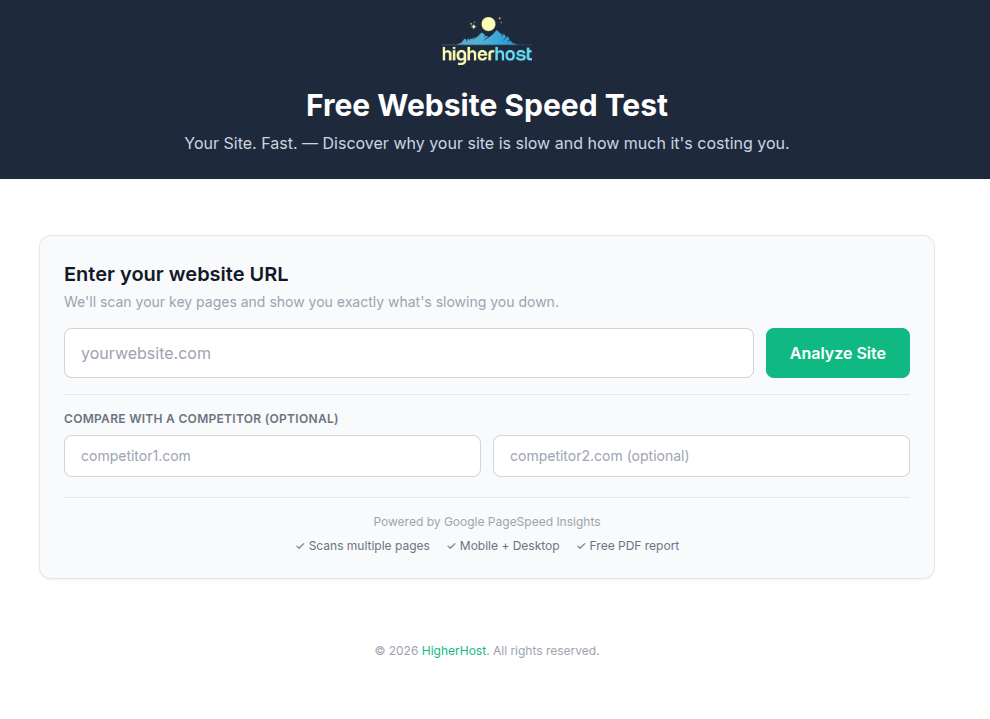
Most website speed tests do one thing: they scan your homepage and give you a score. You stare at the number, feel vaguely anxious, and close the tab.
That is not useful.
The HigherHost speed test works differently. It scans your entire site — homepage, shop, cart, and checkout — measures the performance of each page separately, detects your hosting provider, checks whether server-level caching is active, identifies your WordPress plugins, and tells you in plain language what is slowing you down and what it is costing you in lost revenue.
This guide explains exactly what the tool measures, what each metric means, how to read your results, and what to do about them.
What the Tool Actually Does
Before getting into the results, it helps to understand what happens when you enter your URL and click Analyze.
Step 1: Page discovery
The tool fetches your sitemap to identify the key pages on your site. For WordPress sites it looks for your homepage. For WooCommerce stores it additionally identifies your shop page, cart page, checkout page, and product pages — up to five pages in total.
This matters because different pages have very different performance characteristics. Your homepage might score 90/100 while your checkout scores 43/100. A tool that only scans your homepage misses the pages that actually generate revenue.
Step 2: PageSpeed analysis
Each page is scanned twice — once for mobile performance and once for desktop (homepage and checkout). The tool uses the Google PageSpeed Insights API, the same engine that powers Google's own PageSpeed tool. This means the results are based on real performance data, not estimates.
Mobile is the primary score shown because Google uses mobile performance for search rankings, and because the majority of web traffic in most industries is now mobile.
Step 3: Hosting detection
The tool performs an IP lookup on your domain to identify your hosting provider. This tells you — and us — whether you are on a budget shared host (GoDaddy, Hostinger, Bluehost), a premium managed host, or something in between. Your hosting provider is the single biggest factor in your server response time (TTFB), and knowing who hosts you contextualises everything else in the results.
Step 4: Cache detection
The tool fetches your homepage twice and inspects the response headers. It looks for cache hit indicators from Cloudflare, WP Rocket, LiteSpeed Cache, WP Super Cache, Kinsta, and standard nginx/Varnish setups. If no caching is detected, that is flagged as a critical issue — because every visit to your site is rebuilding the page from scratch.
Step 5: Results and recommendations
Everything is combined into a results page that shows you: a plain-language summary, per-page scores and metrics, what is causing the problems, what you can fix yourself today, and what requires infrastructure-level changes.
Understanding Your Results
The Summary Card
The first thing you see after scanning is a summary card. It looks like this:
"Your site scores 45/100. That's slow. Below the WordPress average of 55/100. Your checkout scores 38/100 — that's your most expensive problem. The main issues: Very slow page load (LCP), Heavy JavaScript blocking render."
This is written for non-technical site owners. You do not need to know what LCP stands for to understand "your site is slow and your checkout is costing you sales."
The summary tells you:
- Your overall mobile score and whether it is above or below the WordPress average (55/100)
- Your checkout score if you have WooCommerce (this gets its own callout because it has the most direct revenue impact)
- The 1–2 most critical issues detected
What the scores mean:
- 80–100: Good. Your site is fast. There may still be improvements available but you are not losing visitors to loading times.
- 50–79: Needs work. Visitors on mobile are experiencing noticeable delays. There are clear gains available.
- 0–49: Poor. Your site is slow. Visitors are waiting several seconds before they can see or do anything. This is affecting your Google rankings and your conversion rate.
The WordPress average of 55/100 is a real benchmark — most WordPress sites, particularly those on shared hosting with Elementor or WooCommerce, cluster in the 40–65 range. A score of 80+ puts you ahead of the vast majority of your competitors.
The Revenue Calculator
Immediately after the summary (for WooCommerce stores) is the revenue calculator.
Enter your monthly visitors, your conversion rate, and your average order value. The tool calculates the revenue impact of your current load speed based on Google and Deloitte research data showing that each second of delay above 1 second costs approximately 7% in conversions.
This is intentionally positioned early in the results because it answers the question every store owner is actually asking: "how much is this actually costing me?"
A site with 5,000 monthly visitors, a 2% conversion rate, and a €75 average order value, scoring 45/100 on mobile, is losing approximately €1,575 per month in revenue to slow loading. That is €18,900 per year.
The calculator uses your real PageSpeed LCP score as the basis for the calculation, not an estimate. The numbers are conservative — real-world impact is often higher because slow sites also rank lower in Google, reducing the traffic you have to convert in the first place.
The Technical Overview
Below the summary and revenue calculator is the technical overview. This is where the infrastructure-level diagnosis lives.
Server Response Time (TTFB)
TTFB stands for Time to First Byte. It measures how long your server takes to respond to a request — from the moment a visitor's browser asks for your page to the moment the first byte of data arrives.
This is the most fundamental performance metric because it is entirely determined by your hosting infrastructure. No plugin, no image compression, no JavaScript optimisation can fix a slow TTFB. It is what it is based on your server.
What the TTFB numbers mean:
- Under 200ms: Excellent. Your server is fast.
- 200–800ms: Acceptable but room for improvement.
- Above 800ms: Slow. Visitors are waiting for the server before a single pixel of your page appears. This is almost always a hosting infrastructure problem — oversold shared servers, spinning disk drives instead of NVMe SSD, no server-level caching, or PHP processing bottlenecks. Quick infrastructure-level wins include enabling GZIP compression and removing unused CSS.
The tool shows your TTFB with a colour-coded indicator (green/amber/red) and a plain-language explanation of what it means. If your TTFB is above 800ms, the tool will tell you this is a hosting problem and explain why.
Cache Status
Next to the TTFB indicator is the cache status: HIT, MISS, or NONE.
- HIT (green): Server-level caching is active. Pre-built pages are being served to visitors, bypassing PHP execution and database queries entirely. This is the gold standard.
- MISS (amber): Caching infrastructure exists but this page was not served from cache. This usually means the cache is warming, or exclusion rules are too aggressive.
- NONE (red): No server-level caching detected. Every visit rebuilds your page from scratch. For a WordPress site with WooCommerce, that means executing PHP, running 40–80 database queries, building the HTML template, and sending it — on every single visit. This is the most common cause of poor TTFB on otherwise well-optimised sites. See our guide on the best caching plugin for WooCommerce.
Hosting Provider
The tool identifies your hosting provider by IP lookup and classifies it as budget, premium, or unknown. Budget hosts (GoDaddy, Hostinger, Bluehost, IONOS) are flagged in red because they are the most common source of the infrastructure problems described above. Premium hosts are shown in green.
If your host shows as "Unknown" — the IP lookup returned a provider name but we could not classify it. The raw name is shown so you can identify it yourself.
WordPress and WooCommerce Detection
The tool checks your network requests to determine whether your site runs WordPress and whether WooCommerce is active. If heavy plugins are detected — Elementor, WPBakery, Divi, Jetpack — they are listed. These plugins are flagged not because they are bad, but because they are known contributors to the performance issues most likely showing up in your results.
Page-by-Page Results
Below the technical overview is the per-page breakdown. This is where the detail lives.
Each page shows:
- The page type (Homepage, Shop, Cart, Checkout, Product Page) with a label explaining why that page matters
- Mobile score (and desktop score for homepage and checkout)
- Six performance metrics: TTFB, FCP, LCP, TBT, CLS, Speed Index
Here is what each metric means:
TTFB — Time to First Byte
As described above: how long your server takes to respond. Measured per page because different pages have different caching configurations and database loads. Your checkout page TTFB is often higher than your homepage TTFB because checkout pages cannot be fully cached.
FCP — First Contentful Paint
How long until something first appears on screen — any text, image, or element. This is the moment a visitor stops staring at a blank white screen. Google considers under 1.8 seconds good, 1.8–3 seconds needs improvement, and above 3 seconds poor.
High FCP is usually caused by render-blocking resources (scripts and stylesheets that load before anything is shown) or slow TTFB.
LCP — Largest Contentful Paint
How long until the main visible element of the page finishes loading. On most pages this is the hero image, the featured product photo, or the main heading text. Google considers under 2.5 seconds good, 2.5–4 seconds needs improvement, and above 4 seconds poor.
LCP is the most important metric for perceived load speed — it is the moment the page feels "loaded" to a visitor. It is also a Google Core Web Vitals ranking factor.
Common causes of poor LCP:
- Large unoptimised images — see our guide on how to optimise images for WordPress
- Render-blocking JavaScript delaying page rendering
- Slow server response (TTFB adds directly to LCP)
- No preloading of the LCP image
TBT — Total Blocking Time
The total amount of time the browser is blocked from responding to user input during page load. Specifically, it measures the time between First Contentful Paint and when the page becomes fully interactive.
TBT is caused by JavaScript — specifically, long tasks that lock up the browser's main thread. See our guide on how to defer JavaScript in WordPress for step-by-step fixes. A page with 2 seconds of TBT means that for 2 seconds after something first appears on screen, the visitor cannot click, scroll, or interact with anything. The page looks loaded but is frozen.
This is particularly important for checkout pages. A checkout that shows the form but cannot be interacted with is functionally the same as a checkout that has not loaded.
Google considers under 200ms good, 200–600ms needs improvement, and above 600ms poor.
CLS — Cumulative Layout Shift
A measure of visual stability — how much the page content moves around as it loads. A score of 0 means the page is perfectly stable. Above 0.1 is considered needs improvement. Above 0.25 is poor.
You experience bad CLS when: you go to click a button and an ad loads above it at the last moment, sending you somewhere else. Or when you start reading an article and the text jumps down as an image loads above it.
CLS is caused by images without explicit dimensions, fonts loading late and causing text reflow, and ads or dynamically injected content. Read our full guide on how to fix Cumulative Layout Shift in WordPress.
Speed Index
How quickly the visual content of the page loads — not just when it starts, but how progressively it fills in. A low Speed Index means the page fills in quickly and smoothly. A high Speed Index means the page sits mostly blank and then loads all at once.
Speed Index is less directly actionable than LCP or TBT, but it reflects the overall experience of watching a page load.
The Checkout Callout
If you have WooCommerce and your checkout page scores below 70, the tool shows a red or orange warning banner at the top of the results.
This is intentional. The checkout page is the most valuable page on any WooCommerce store. It is where visitors who have already decided to buy complete their purchase. A slow checkout does not just frustrate visitors — it costs you completed transactions.
Research consistently shows:
- Each additional second of checkout load time increases cart abandonment by 7–10%
- 18% of US online shoppers have abandoned a checkout specifically because it was too slow or complicated
- A 0.1 second improvement in mobile checkout speed increases conversion rates by 8.4%
For a full breakdown of checkout optimisation, see our guide on how to speed up your WooCommerce checkout.
The warning banner is shown for checkouts below 70 because that is the threshold at which the performance impact on conversion rates becomes significant. A score of 38/100 on checkout — which is not uncommon on shared hosting with Elementor — means your checkout is in the worst-performing 10% of sites on the web.
The checkout scores are shown separately from the overall score precisely because a store with a fast homepage and a slow checkout is still losing sales at the final step.
Competitor Comparison
If you entered one or two competitor URLs before scanning, your results include a side-by-side comparison showing each site's score, TTFB, and hosting provider.
This is useful for two reasons:
First, it contextualises your score. A score of 55/100 feels different when you can see that your closest competitor scores 48/100 versus when they score 78/100.
Second, it reveals hosting differences. If your competitor's site loads significantly faster and the hosting badge shows they are on a better infrastructure, that is actionable intelligence.
The comparison shows mobile scores only, making it an apples-to-apples comparison regardless of device.
What We’d Fix
The "What We'd Fix" section translates the technical findings into specific recommendations. Each recommendation has:
- A priority level: Critical, High, or Medium
- A plain-language explanation of the problem
- What HigherHost does to address it
Priority levels explained:
Critical — these issues are causing significant, measurable harm to your site's performance and likely your revenue. They should be addressed first. Critical issues typically include: slow TTFB (hosting problem), very slow LCP above 4 seconds, heavy JavaScript blocking render (TBT above 600ms), checkout performance below 50, and no server-level caching.
High — significant impact but not as severe as Critical. Worth fixing but not the first priority if you have Critical issues. High issues typically include: render-blocking resources, unoptimised images, slow LCP in the 2.5–4 second range, no GZIP compression.
Medium — real issues worth fixing but lower impact than Critical and High. Unused JavaScript, unused CSS, no browser caching configured.
The recommendations are generated dynamically based on what is actually detected on your site. If your TTFB is fast, you will not see a recommendation about server response time. If your images are already optimised, you will not see an image compression recommendation. The tool only tells you what is actually wrong.
Quick Wins
Below the recommendations is a "Quick Wins" section — things you can do yourself today without touching your hosting or hiring a developer.
Each quick win includes a specific action and a link to a detailed guide on the HigherHost blog. The guides available:
- How to optimise images for WordPress
- How to defer JavaScript in WordPress
- How to remove unused CSS in WordPress
- How to enable GZIP compression in WordPress
- The best caching plugin for WooCommerce
- How to fix Cumulative Layout Shift in WordPress
- How to speed up your WooCommerce checkout
The quick wins are honest: they will make a real difference on most sites, but they have limits. If your TTFB is 1,800ms because you are on an oversold shared server, no plugin will fix that. The notes say this directly.
The PDF Report
Entering your email at the bottom of the results page sends you a branded PDF report containing:
- Your scores on the cover: overall, checkout, average LCP, server response time
- An intro paragraph explaining what the numbers mean for your specific site
- What is working well (positive callouts for metrics that are already good)
- A detected issues summary
- Full page-by-page breakdown with all six metrics
- Prioritised recommendations with specific fix copy
- Quick wins with links to the blog guides
- HigherHost contact information
The PDF is useful for sharing with a developer or a business partner. It is also something you can refer back to — run the test again in 30 days after making changes and compare.
How to Get the Most Out of the Tool
Test your checkout URL directly
If you want to focus on your checkout specifically, you can enter yourstore.com/checkout/ (or /afrekenen/ for Dutch stores) directly into the URL field. The tool will scan it as the primary URL and show you the full metrics for that page.
Use the competitor comparison
If you know who your main competitors are, add their URLs before scanning. The side-by-side comparison gives your score context and often reveals infrastructure differences that explain performance gaps.
Run the test on mobile
The tool already measures mobile performance — but it is worth opening your site on your actual phone over a real mobile connection (not WiFi) and experiencing what your visitors experience. A score of 45/100 on mobile is an abstract number until you watch your own checkout page load on a 4G connection.
Pay attention to TTFB before anything else
TTFB is the foundation. If your TTFB is above 800ms, fixing images and deferring JavaScript will produce marginal improvements while the fundamental problem — your server — remains. Address infrastructure issues first, then optimise assets.
Retest after making changes
PageSpeed scores fluctuate slightly between tests — Google's infrastructure varies, and your server load at the time of testing affects results. Run two or three tests and take the average, rather than treating a single test as definitive. After making significant changes (switching hosts, installing a caching plugin, running image compression), wait 24 hours and retest.
What the Tool Does Not Measure
Being honest about limitations:
Real user data
The tool uses lab data — a controlled test under specific conditions. Google Search Console shows "field data" — real-world measurements from actual visitors to your site. Field data and lab data often differ. The tool gives you actionable lab data to work with; Google Search Console gives you the real-world picture.
Server load under traffic
The test runs under zero load. Your production site handles concurrent visitors, database connections, and background processes. A site that scores 70/100 in the lab might perform significantly worse during peak traffic if it is on a shared server.
All pages
The tool scans up to five pages. A large WooCommerce store with hundreds of product pages may have performance variations across its catalog that a five-page scan will not capture.
Third-party service availability
If your site depends on a slow third-party service (a payment provider's JavaScript, a slow analytics endpoint), the tool will detect the resulting TBT but cannot always attribute it precisely to the third party.
Frequently Asked Questions
Why does my score differ from Google PageSpeed Insights?
The tool uses the Google PageSpeed Insights API — the same data source. Score variations between tests are normal and can be 5–10 points in either direction due to server load, network conditions, and Google's infrastructure variation. If you see a large discrepancy, run both tests several times and compare averages.
My homepage scores 90 but my checkout scores 40. Why?
Common reasons: your homepage is served from full-page cache (fast) while your checkout is not cached (slow). Your checkout loads more scripts — analytics, payment provider JavaScript, social pixels — that your homepage does not. Your checkout has heavier database queries (cart contents, shipping calculations, tax rules).
The tool detected WooCommerce on my site but I do not use it.
WooCommerce detection is based on network requests — files loaded from wp-content/plugins/woocommerce or similar paths. If WooCommerce is installed but not active, or if a theme includes WooCommerce compatibility files even without the plugin, it may trigger a false positive.
The tool shows my host as "Unknown."
The IP lookup identified your hosting provider's name but could not classify it as budget or premium. The raw name is shown — you can look it up yourself or compare it against the TTFB reading. A TTFB above 800ms on an "Unknown" host is a strong indicator of shared hosting infrastructure regardless of the provider name.
How long does the scan take?
30–90 seconds, depending on how many pages are found and whether you entered competitor URLs. Each page requires a separate PageSpeed API call, and the cache detection adds a small amount of time. The progress bar shows which step is running.
Is the tool really free?
Yes. No account required, no credit card, no limit on how many times you can use it. The PDF report requires an email address. We use that to send you the report and occasionally follow up if your results show significant performance problems we can help with.
Run Your Site Now
The tool is at higherhost.com/speed-test.
Enter your URL, add a competitor if you want the comparison, and click Analyze. The scan takes about a minute. Your results will show you exactly where your site stands, what is causing the problems, and what you can realistically do about it.
If your scores are poor — particularly if your TTFB is above 800ms or your checkout is below 70 — the root cause is almost always hosting infrastructure. That is what HigherHost is built to fix.
Free migration. No downtime. No price increases. View our hosting plans.
HigherHost provides managed WordPress and WooCommerce hosting built for performance. NVMe servers, server-level caching, free site migration, and support from people who understand WordPress performance.